
Convert JPG to WebP Online
Convert JPG photos to WebP for lighter web pages. Compare the original and converted file sizes before you download.
Drop your image here
or
Supported: JPG, JPEG
Maximum file size: 20 MB
You can also paste an image from your clipboard.
- File name
- Dimensions
- File size
- Format
Before and after
Drag the slider, or use the arrow keys, to compare. Zoom in on your device to check fine detail.
Original
- Size
- Dimensions
- Format
Compressed
- Size
- Dimensions
- Format
Your image is processed for compression and is not permanently stored. In modern browsers, compression runs on your device, so the image is not uploaded. Older browsers that cannot encode WebP or PNG fall back to our server, where the image is processed in memory and discarded as soon as the result is returned. Privacy policy
Simple, free and private
-
Free to use
Compress and convert as many images as you like, with no fees or watermarks.
-
No registration
No account or email needed. Open the page and start right away.
-
JPG, PNG and WebP
Works with the most common image formats and converts between them.
-
Up to 20 MB
Upload large photos straight from your phone or camera.
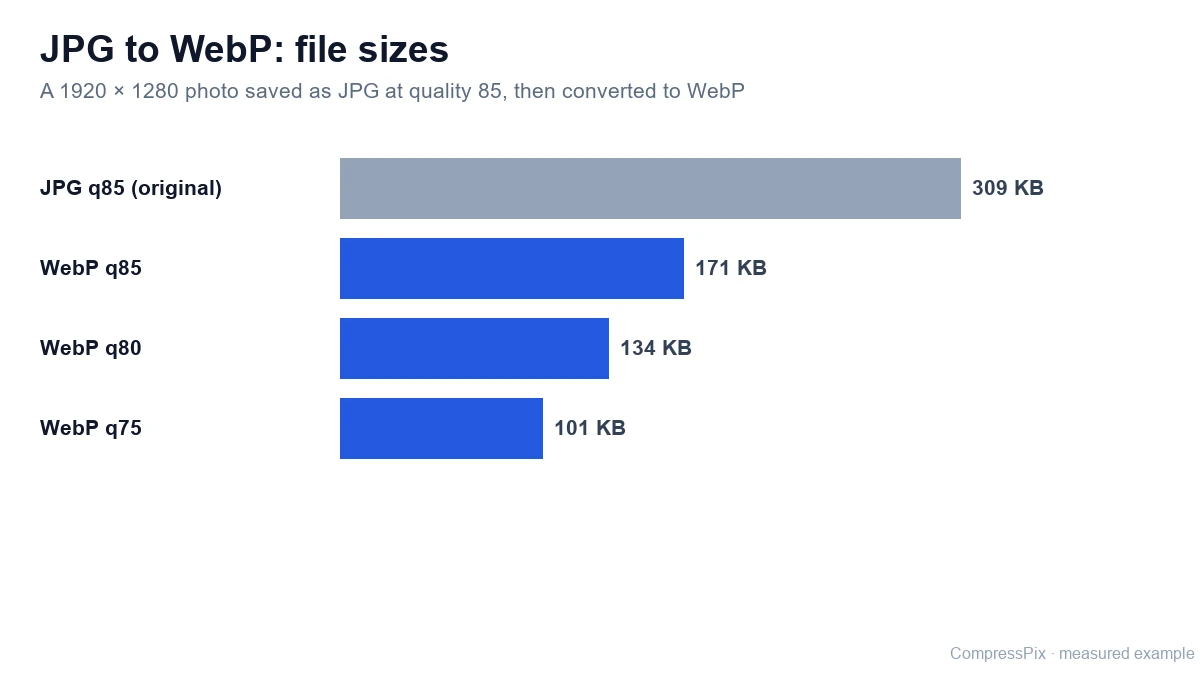
Why convert JPG to WebP for the web?
Images are often the heaviest part of a web page. Product galleries, blog headers and portfolio photos are usually JPG, and for many of them a lossy WebP at similar visual quality is a smaller file. Smaller images download faster, especially on mobile connections.
WebP is displayed by all current major browsers, which makes it a practical format for websites, blogs and online stores. It is not always smaller than JPG, though, so this converter shows the original and converted sizes side by side. You can see the real difference for your image instead of relying on a general rule.
This page is set up to output WebP. Upload a JPG, adjust the quality, and download a .webp file. If you already have WebP files that need shrinking, use the WebP compressor.
How to convert JPG to WebP
-
Add your JPG
Drag and drop, choose a file or paste a JPG or JPEG image. WebP output is already selected.
-
Adjust quality
Start around 75–80% and compare the new file size with the original.
-
Download the WebP
Check textures in the comparison slider, then download your .webp file.
Getting good results from JPG to WebP
Compare sizes, not just settings
WebP and JPG quality numbers are not directly comparable. A JPG saved at 90% and a WebP at 90% will not look or weigh the same. Instead of matching numbers, look at the result: compare the file sizes shown, zoom in on skin, foliage, fabric and other fine textures, and lower the quality only while the image still looks right.
If a JPG was already compressed heavily, the WebP may barely be smaller. In that case there is little reason to switch, and the original JPG may be the better file to keep. Setting a target size works too, but the tool may reduce dimensions if quality alone cannot reach it, so check that the image is still large enough for your layout.
Convert once, from the best source
Both JPG and lossy WebP discard detail. Converting cannot bring back what the JPG already lost, and every extra lossy save removes a little more. Convert from the highest-quality JPG you have, avoid converting the same image back and forth, and keep the original so you can re-export later with different settings.
Using WebP on your site
Many content management systems and store platforms accept WebP uploads, but support depends on the platform, its version and any plugins, so check before replacing a whole library. If you hand-code pages, the HTML <picture> element lets you offer WebP with a JPG fallback.
When to keep JPG
- Email attachments and files you share with people using unknown software.
- Printing, since some print services only accept JPG or PNG.
- Upload forms that list JPG as the accepted format.
- Older desktop software that cannot open WebP.
For those cases, make the JPG smaller with the JPG compressor. If you receive a WebP that will not open somewhere, the WebP to JPG converter turns it back into a JPG. Transparent PNG graphics are better handled by the PNG to WebP converter.
Where conversion happens
Current Chrome, Edge and Firefox can encode WebP, so the image is converted on your device. In browsers that cannot, the tool sends the image to our server, converts it in memory and discards it. Either way, EXIF metadata such as GPS location is removed.
Frequently asked questions
Will converting JPG to WebP always make the file smaller?
Often, but not always. A lossy WebP is frequently smaller than a JPG at similar visual quality, but an already heavily compressed JPG may not shrink much. The result shows both file sizes, so keep whichever file is smaller at a quality you are happy with.
Does converting to WebP improve image quality?
No. Any detail JPG compression removed is gone, and WebP is also a lossy encode. Convert from the highest-quality original you have rather than from a copy that has already been compressed several times.
Should I use the same quality number as my JPG?
Not necessarily. WebP and JPG quality numbers are not directly comparable, so the same percentage can give a different look and size. Start around 75–80% and check fine textures in the comparison slider.
Can I upload WebP images to WordPress, Shopify or other platforms?
Many website platforms and content management systems accept WebP, but support varies by platform, version, theme and plugins. Check that your platform accepts WebP uploads before replacing all your JPG images.
Is my JPG uploaded when converting to WebP?
In browsers that can encode WebP, such as current Chrome, Edge and Firefox, conversion happens on your device. Otherwise the image is sent to our server, processed in memory and discarded after the WebP is returned.
Does the conversion keep my photo's EXIF data?
No. Re-encoding removes EXIF metadata such as GPS location and camera details. The image is still displayed the right way up.
More answers in our image compression FAQ.