
Convert PNG to WebP Online
Convert transparent PNG images to WebP and keep the transparent background. Ideal for product cut-outs and illustrations with soft shadows.
Drop your image here
or
Supported: PNG
Maximum file size: 20 MB
You can also paste an image from your clipboard.
- File name
- Dimensions
- File size
- Format
Before and after
Drag the slider, or use the arrow keys, to compare. Zoom in on your device to check fine detail.
Original
- Size
- Dimensions
- Format
Compressed
- Size
- Dimensions
- Format
Your image is processed for compression and is not permanently stored. In modern browsers, compression runs on your device, so the image is not uploaded. Older browsers that cannot encode WebP or PNG fall back to our server, where the image is processed in memory and discarded as soon as the result is returned. Privacy policy
Simple, free and private
-
Free to use
Compress and convert as many images as you like, with no fees or watermarks.
-
No registration
No account or email needed. Open the page and start right away.
-
JPG, PNG and WebP
Works with the most common image formats and converts between them.
-
Up to 20 MB
Upload large photos straight from your phone or camera.
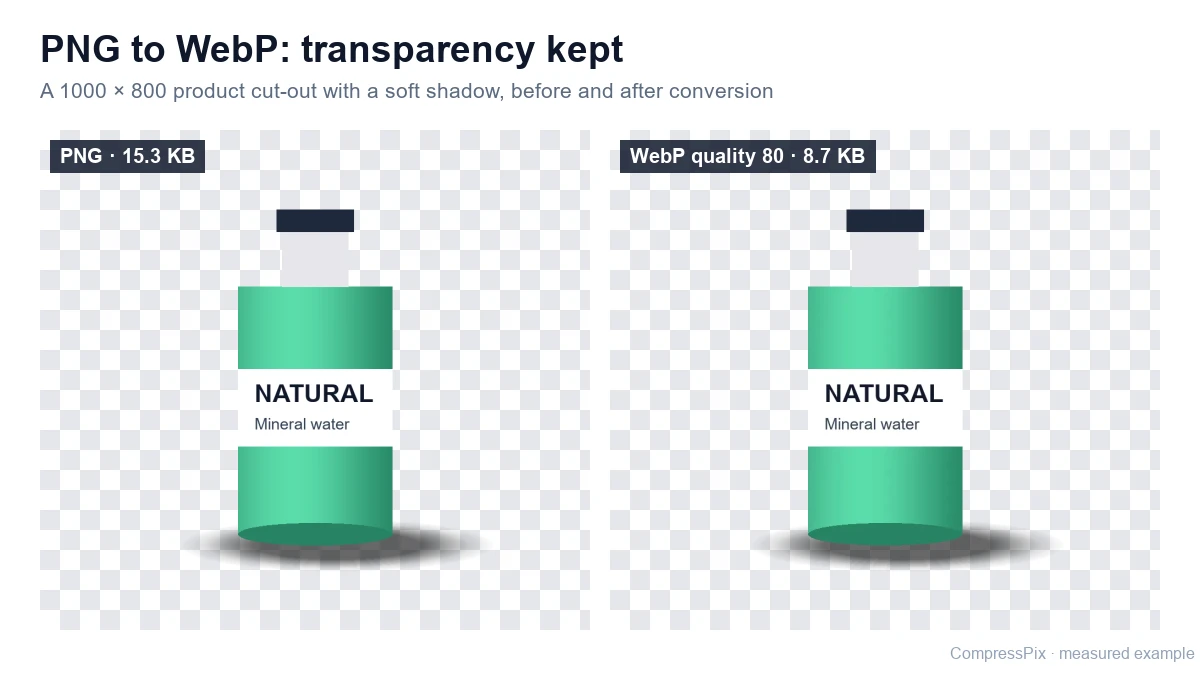
Transparency without the PNG file size
PNG is the usual choice for images with transparent backgrounds: product photos cut out from their background, illustrations with soft drop shadows, stickers and hero graphics. Because PNG is lossless, those images are often very large, especially when they contain photographic detail or smooth gradients.
Converting to JPG would make them smaller but fill the background with white. Palette-based PNG compression keeps transparency, but soft shadows and gradients can show banding when the colours are reduced. Lossy WebP sits between the two: it keeps the alpha channel and compresses photo-like content efficiently.
This page is set up to output WebP. Upload a PNG, choose a quality, and download a .webp file with its transparency intact. For JPG photos, use the JPG to WebP converter.
How to convert PNG to WebP
-
Add your PNG
Drag and drop, choose a file or paste an image. WebP output is already selected.
-
Choose a quality
Start around 80% and raise it if edges or small text look soft.
-
Check edges, then download
Zoom in on outlines and shadows in the comparison slider, then download the .webp file.
Checking quality when converting PNG to WebP
Good candidates for WebP
- Product cut-outs for online stores, where the background must stay transparent.
- Illustrations with soft shadows or gradients that band when reduced to a small palette.
- Photos saved as PNG that also need transparency, such as portraits with a removed background.
Check transparent edges
The output is lossy WebP, and the transparency itself is compressed along with the colours. Around the outline of a cut-out, hair, fur or a soft shadow, lower quality settings can produce slightly rough or blurred edges. Zoom in on those areas in the comparison slider. If you see halos or jagged outlines, raise the quality until they disappear.
UI graphics, icons and text
Screenshots, interface elements and images containing small text rely on sharp, pixel-exact edges. Lossy WebP can soften them. Check lettering and thin lines carefully at full size, not just in a small preview, and use a high quality if you convert these at all. If they still look soft, keep them as PNG.
When a palette PNG is better
Simple logos, icons and flat illustrations with only a handful of colours often compress very well as an indexed palette PNG, while staying perfectly crisp. Try the PNG compressor on the same file and compare the result with the WebP. If transparency does not matter at all, the PNG to JPG converter gives maximum compatibility.
Browser support and compatibility
All current major browsers display WebP, including transparent WebP, so it works well for websites and stores. Some older software, upload forms and print services still only accept JPG or PNG, so keep your original PNG as the master copy.
Where conversion happens
Current Chrome, Edge and Firefox can encode WebP, so the PNG is converted on your device. Other browsers fall back to our server, which converts the image in memory, keeps transparency and discards the file afterwards. Need to shrink an existing WebP? Use the WebP compressor.
Why convert PNG to WebP?
-
Keeps transparency
Transparent and semi-transparent areas stay transparent, unlike JPG.
-
Lighter cut-outs
Photo-like PNGs with transparency are often much smaller as lossy WebP.
-
Compare before download
Use the slider to check edges, shadows and text at your chosen quality.
-
Browser support
Displayed by all current major web browsers.
Frequently asked questions
Does PNG to WebP keep the transparent background?
Yes. WebP supports an alpha channel, so transparent and semi-transparent areas are kept. This is the main difference from the PNG to JPG converter, which fills transparency with white.
Is the converted WebP lossless?
No. The converter creates lossy WebP. Most photos and soft illustrations look very close to the original at a good quality setting, but sharp edges, thin lines and small text can soften. Use the comparison slider to check before downloading.
Should I convert logos and icons to WebP?
It depends. Simple graphics with a few flat colours can be small and perfectly sharp as a palette PNG, which the PNG compressor creates. WebP tends to help more with photo-like images, gradients and soft shadows. Try both and compare the file sizes and edges.
Can I use WebP images with transparency on my website?
Yes. All current major browsers display WebP, including its transparency. Some older software, upload forms and print services only accept JPG or PNG, so keep your original PNG for those.
Is my PNG uploaded during conversion?
Not in browsers that can encode WebP, such as current Chrome, Edge and Firefox. In other browsers the image is sent to our server, converted in memory with transparency kept, and discarded.
Is there a size limit?
You can convert one PNG at a time, up to 20 MB. Very large images are also limited by pixel count: 50 megapixels in the browser and 25 megapixels when the server fallback is used.
More answers in our image compression FAQ.